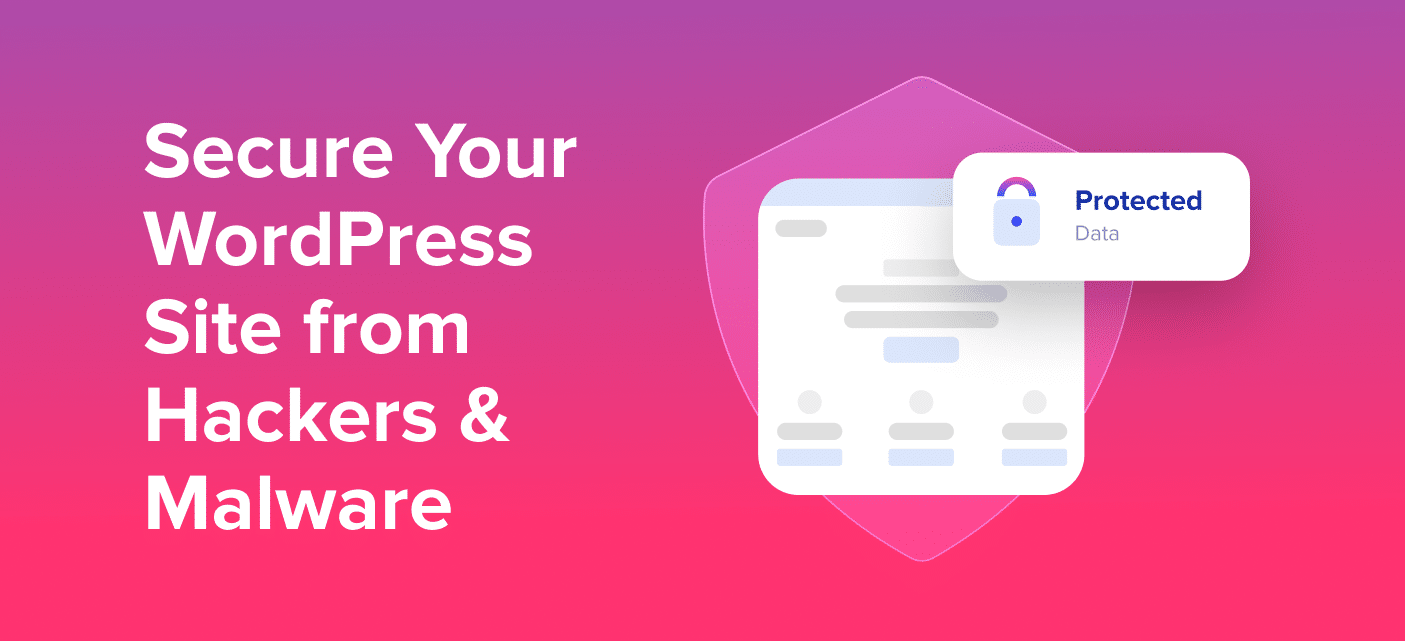
How to Secure Your WordPress Site from Hackers (Complete Guide)
Keeping your WordPress site secure isn’t just a technical task—it’s essential for protecting your content, your visitors, and your reputation. Whether you’re running a personal blog or a full-scale business website, security should be a top priority from day one.
In this guide, you’ll learn how to secure your WordPress site from hackers with practical, step-by-step strategies. No jargon, no fluff—just proven methods that actually work.
Why WordPress Security Matters
WordPress powers over 40% of websites on the internet, which makes it a popular target for hackers. But here’s the key point: most attacks aren’t personal—they’re automated. Hackers use bots to scan websites for common vulnerabilities like outdated plugins, weak passwords, or poor configurations.
If your site isn’t protected, it can lead to:
- Data theft
- Malware infections
- SEO penalties from search engines
- Loss of trust from your audience
The good news? You don’t need to be a developer to significantly improve your site’s security.
Step-by-Step Guide to Secure Your WordPress Site
1. Keep WordPress, Themes, and Plugins Updated
Outdated software is one of the biggest security risks.
What to do:
- Regularly update WordPress core
- Update themes and plugins as soon as updates are available
- Delete unused plugins and themes
Why it matters: Updates often include security patches that fix known vulnerabilities.
2. Use Strong Login Credentials
Weak passwords are like leaving your front door unlocked.
Best practices:
- Use a strong password (mix of uppercase, lowercase, numbers, symbols)
- Avoid “admin” as your username
- Use a password manager to store credentials securely
3. Enable Two-Factor Authentication (2FA)
Two-factor authentication adds an extra layer of protection.
How it works:
Even if someone gets your password, they’ll still need a second verification step (like a code sent to your phone).
Tip: Use authentication apps instead of SMS for better security.
4. Install a Reliable Security Plugin
A good security plugin acts like a firewall and monitoring system for your site.
Look for features like:
- Malware scanning
- Login attempt limits
- Firewall protection
- File integrity monitoring
These tools can automatically detect and block suspicious activity.
5. Use a Web Application Firewall (WAF)
A WAF filters incoming traffic and blocks malicious requests before they reach your site.

Benefits:
- Protects against brute-force attacks
- Blocks suspicious IP addresses
- Improves site performance in some cases
6. Limit Login Attempts
By default, WordPress allows unlimited login attempts—which makes brute-force attacks easier.
Solution:
- Limit login attempts to 3–5 tries
- Temporarily block IPs after failed attempts
7. Secure Your Hosting Environment
Your hosting provider plays a big role in your website’s security.
Choose a host that offers:
- Regular backups
- Malware scanning
- Server-level firewalls
- SSL certificates
Cheap hosting can sometimes mean weaker security measures, so choose wisely.
8. Install an SSL Certificate (HTTPS)
An SSL certificate encrypts data between your site and its visitors.
Why it matters:
- Protects sensitive information
- Boosts SEO rankings
- Builds trust with users
Most hosting providers offer free SSL certificates.
9. Backup Your Website Regularly
Even with strong security, things can go wrong. Backups are your safety net.
Best practices:
- Schedule automatic daily or weekly backups
- Store backups off-site (not just on your server)
- Test your backups to ensure they work
10. Disable File Editing in WordPress
WordPress allows you to edit theme and plugin files directly from the dashboard—but this can be risky.
Solution:
Disable file editing by adding this line to your wp-config.php file:
11. Change Your Login URL
The default login URL (/wp-admin or /wp-login.php) is widely known.
What to do:
- Change it to a custom URL
- This reduces automated attacks
12. Monitor User Activity
If you have multiple users on your site, monitoring activity is crucial.

Keep track of:
- Login attempts
- Content changes
- Plugin installations
This helps you quickly detect suspicious behavior.
13. Set Proper File Permissions
Incorrect file permissions can give hackers access to sensitive files.
Recommended settings:
- Files: 644
- Directories: 755
wp-config.php: 600 (extra protection)
14. Disable XML-RPC if Not Needed
XML-RPC is a feature that allows remote connections but is often exploited.
If you don’t use it:
Disable it to reduce attack surfaces.
15. Scan Your Website for Malware
Regular scans help detect threats early.
What to do:
- Use security plugins to scan your site
- Schedule automatic scans
- Remove any detected malware immediately
Common WordPress Security Mistakes to Avoid
Even experienced users make these mistakes:
- Using nulled (pirated) themes or plugins
- Ignoring updates
- Not using backups
- Installing too many plugins
- Choosing weak hosting providers
Avoiding these pitfalls can dramatically reduce your risk.
FAQs About WordPress Security
1. Is WordPress secure by default?
Yes, WordPress is secure at its core. However, vulnerabilities often come from outdated plugins, weak passwords, or poor configurations.
2. Do I really need a security plugin?
While not mandatory, security plugins make it much easier to monitor and protect your site. They automate many important tasks and provide peace of mind.
3. How often should I back up my site?
It depends on how often you update your content. For active sites, daily backups are ideal. For smaller sites, weekly backups may be enough.
4. Can a small website be hacked?
Absolutely. Hackers often target small websites because they’re more likely to have weak security.
5. What should I do if my site gets hacked?
- Take your site offline
- Restore from a clean backup
- Scan for malware
- Change all passwords
- Update everything (WordPress, themes, plugins)
6. Does SSL protect my site from hackers?
SSL protects data in transit but doesn’t stop all types of attacks. It’s just one part of a complete security strategy.
Final Thoughts
Learning how to secure your WordPress site from hackers doesn’t have to be overwhelming. Most attacks succeed because of simple oversights—outdated software, weak passwords, or lack of monitoring.
By following the steps in this guide, you’ll dramatically reduce your risk and create a safer experience for your visitors.
Start with the basics:
- Keep everything updated
- Use strong authentication
- Install security tools
- Back up regularly
Security isn’t a one-time task—it’s an ongoing process. But with the right habits in place, you can stay ahead of most threats and keep your WordPress site running smoothly.